Convertir un avatar en avatar Android
Not sure how to properly convert your avatar to Android ? This guide will help you solve this common problem step by step.
Solutions
Tip: Follow the steps carefully.
Step 1: Import the VrcQuestTools package
If you don't know how to import a package, please refer to this guide here.To import VrcQuestTools into your Vrchat Creator Companion, you will need to copy this:
https://kurotu.github.io/vpm-repos/vpm.json
And paste it into “Add Repository.â€
Step 2: Apply VrcQuestTools to your project
Open Manage Project.
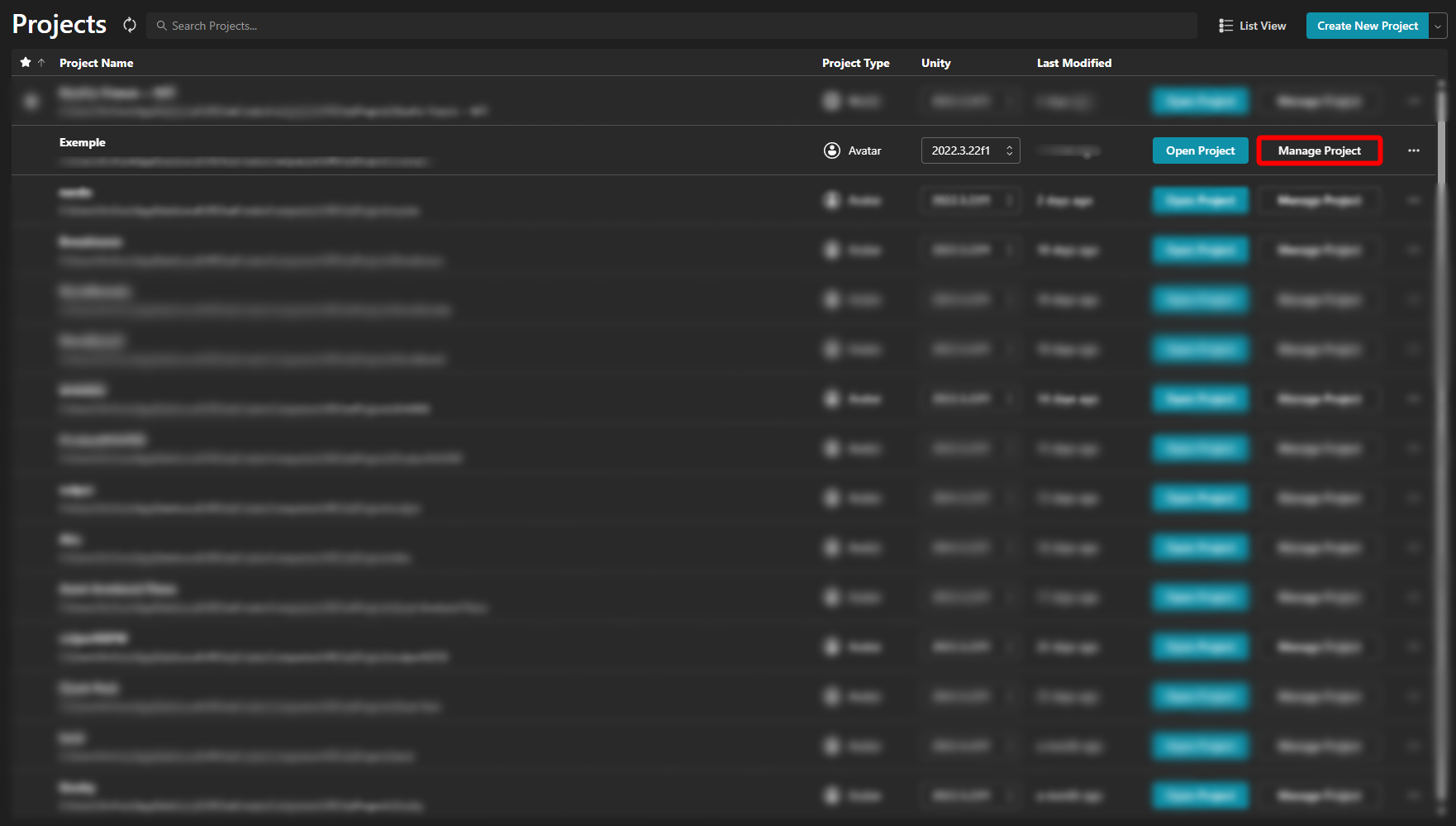
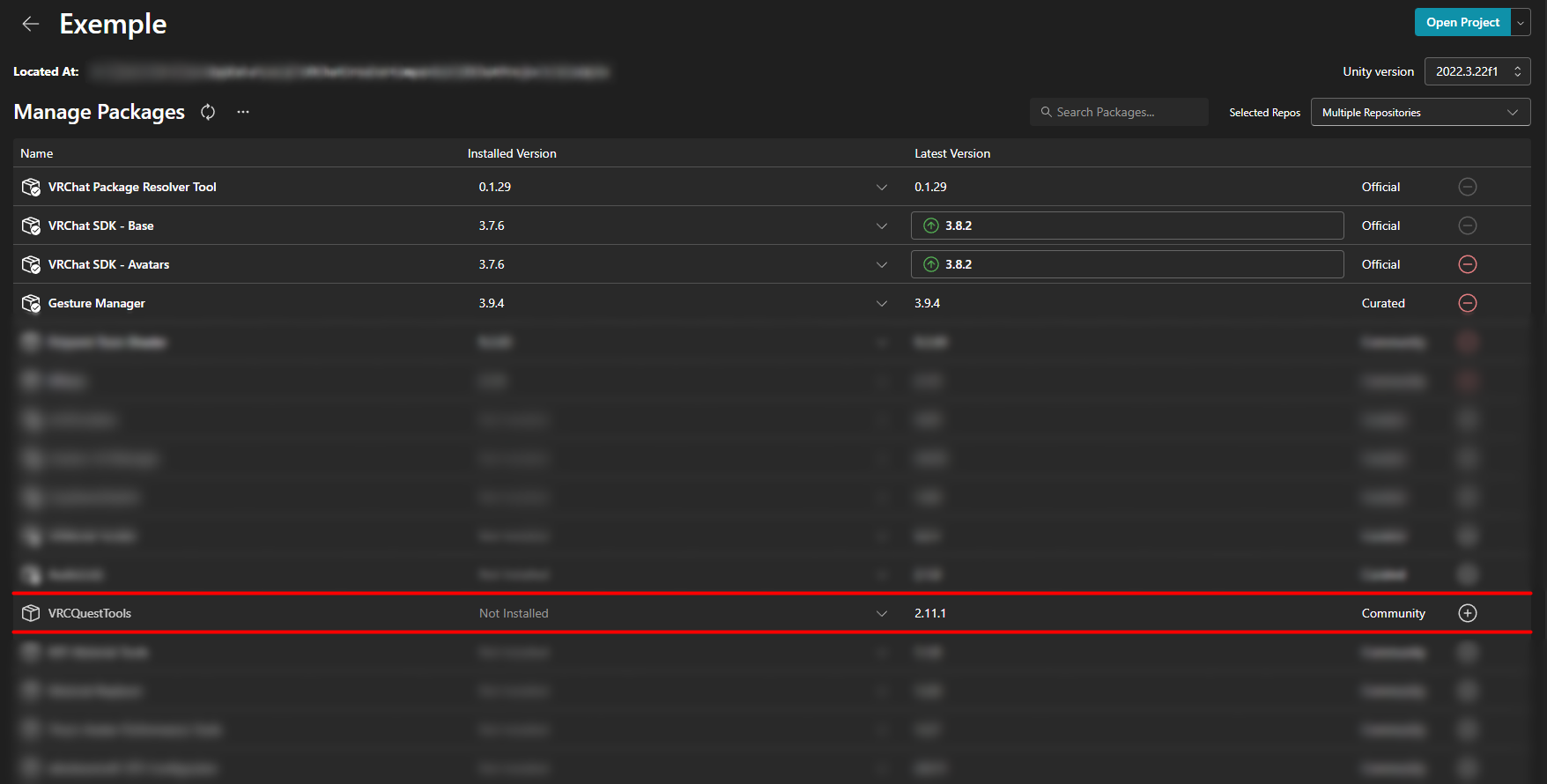
Once you have clicked on Manage Project, you should add VrcQuestTools to your project and Open your Project.
Step 3: Convert to Android
Access your project. In your project, go to Tools/VrcQuestTools/Convert Avatar for Android. Then select the avatar.
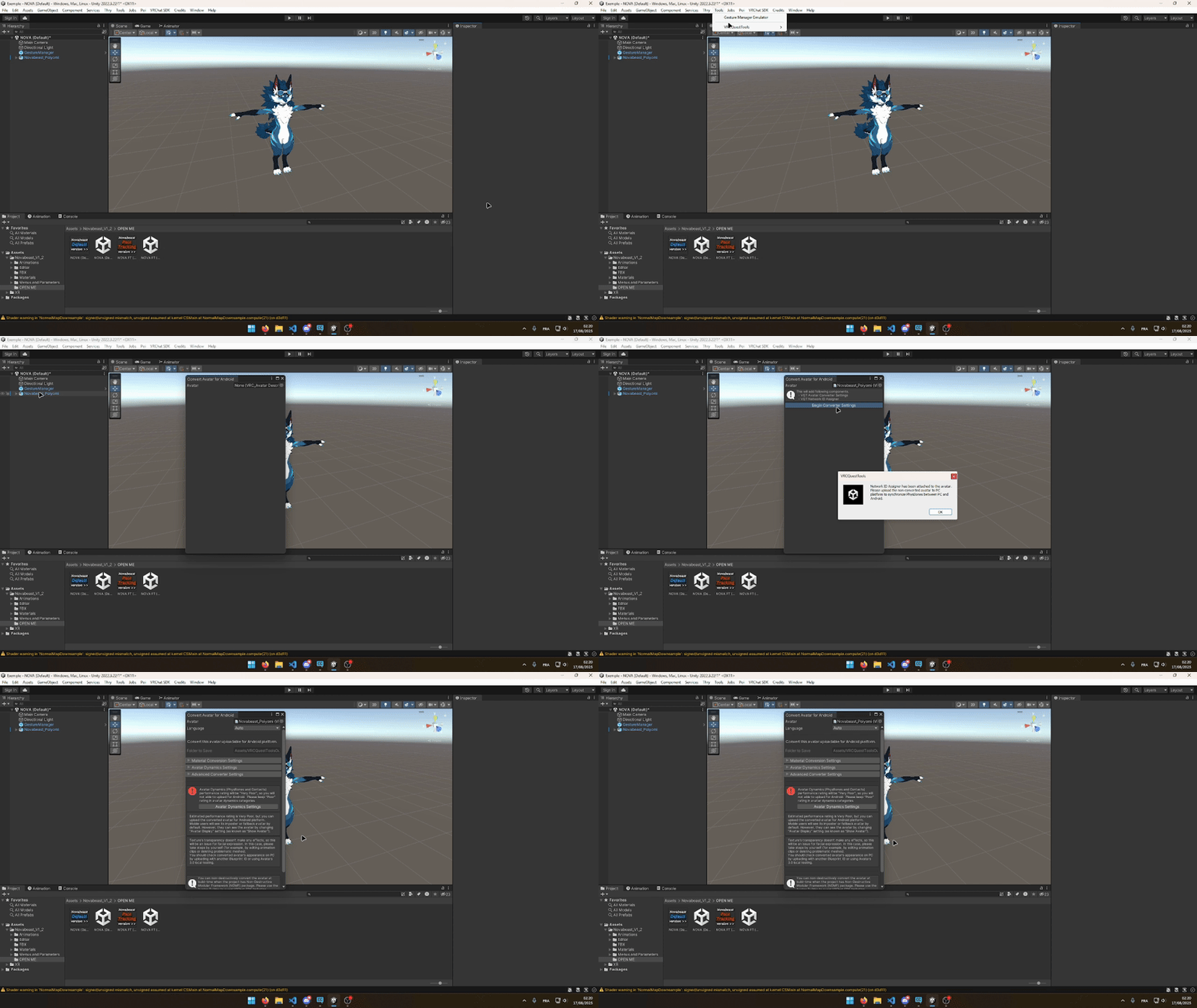
Convert textures to Android
Once the pop-up window is open, open the Material Conversion Settings category and select your Default Material Conversion I chose Toon Lit to stay in line with the avatar's theme.
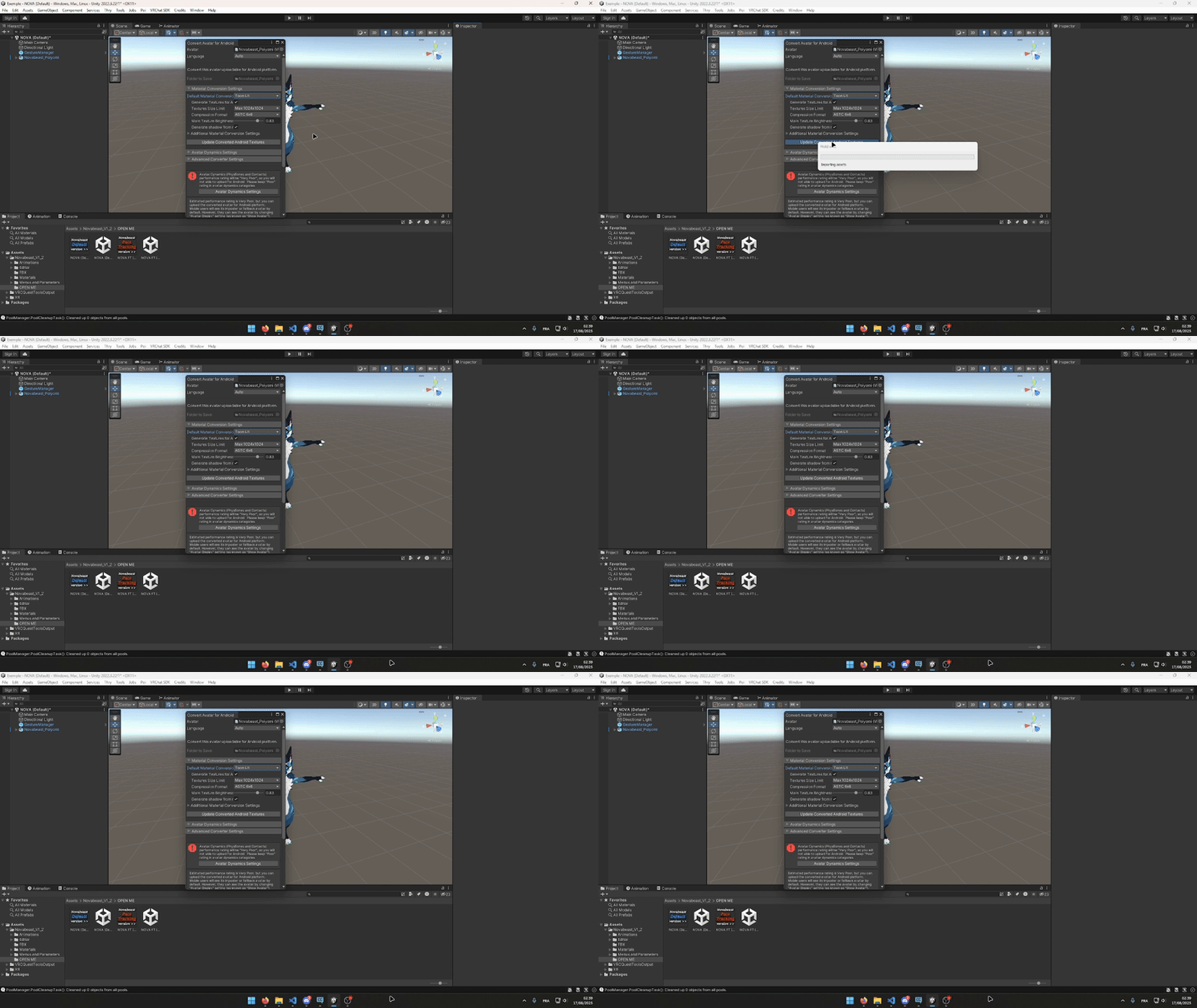
Convert Physbones to Android
Open the Avatar Dynamics Settings category and click Avatar Dynamics Settings. A pop-up window will open. In this pop-up window, select the Physbones you want to keep in the Physbones category. You have a maximum number of Physbones components/transformations, collisions, and contacts and Apply.
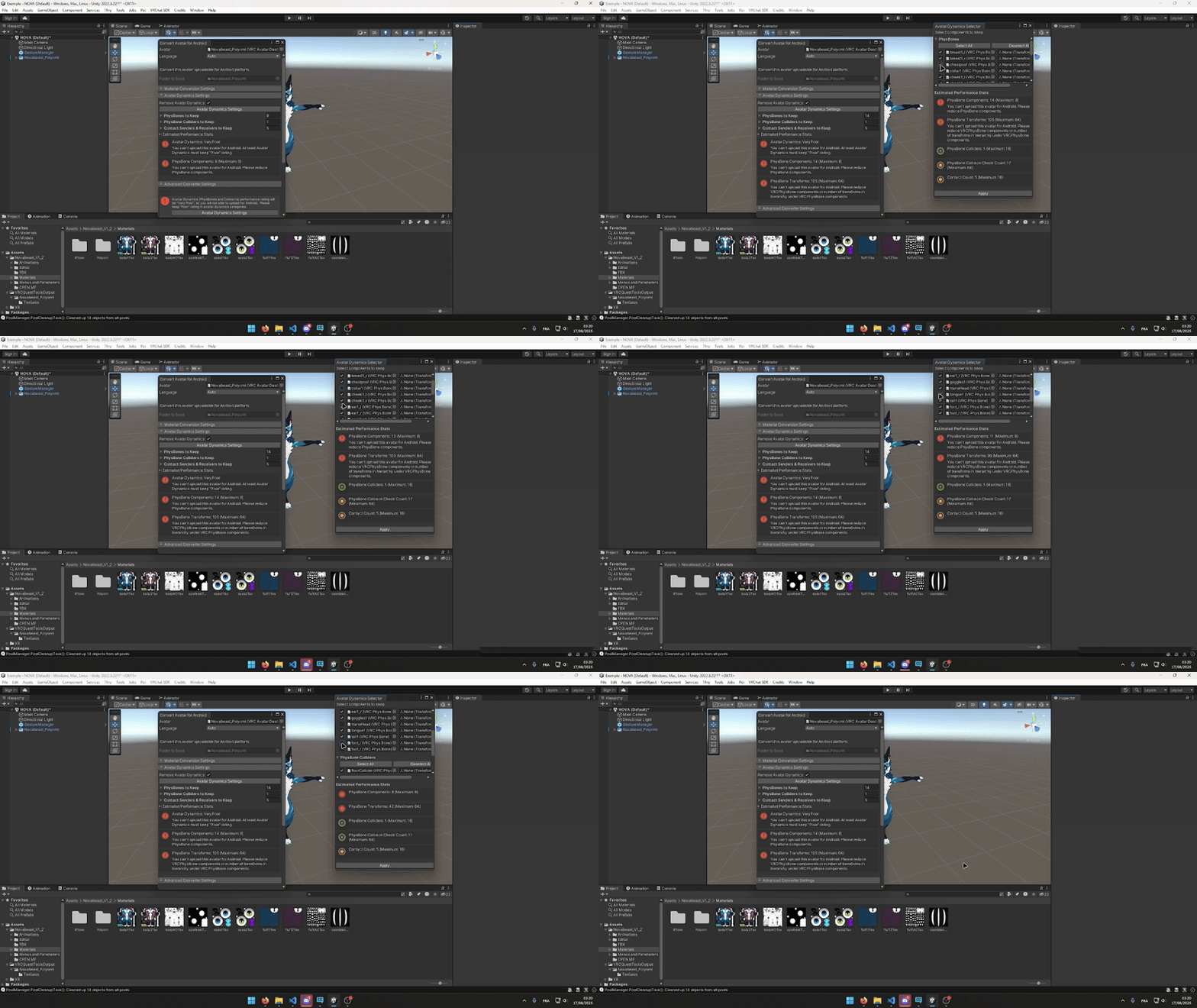
| Parameter | Maximum Value |
|---|---|
| Physbones Components | 8 |
| PhysBones Transforms | 64 |
| PhysBones Colliders | 16 |
| PhysBones Collision Check Count | 64 |
| Contact Count | 16 |
Step 4: Finish converting the avatar to Android
Apply the settings by clicking the Convert button in the first pop-up window.
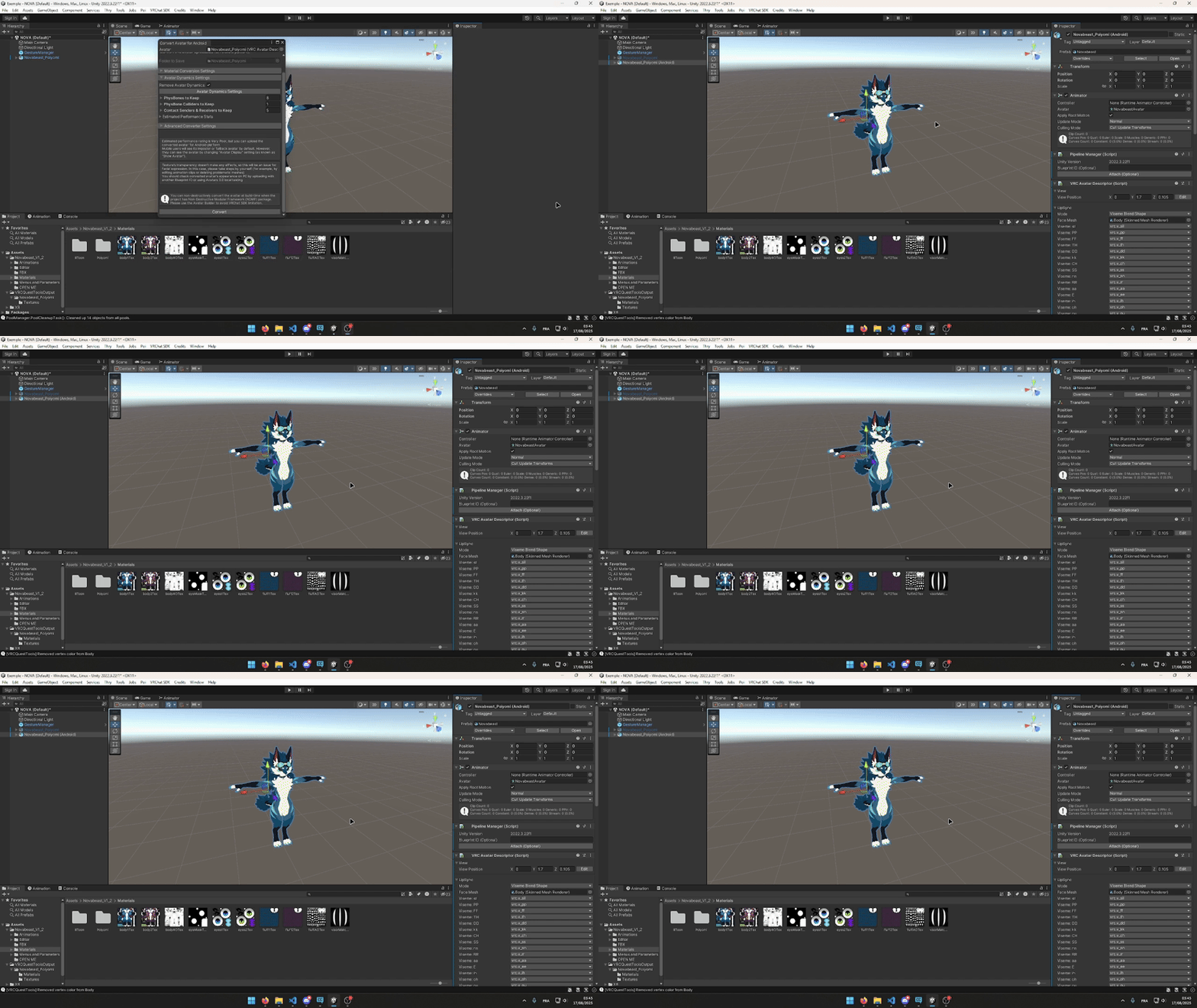
Final Step 5: Finalize the conversion of materials to Android
Look for the Materials folder in the VRCQuestToolsOutput folder. Once inside, find the textures that need to be transparent and change their shader to VRChat/Mobile/Particles/Multiply.
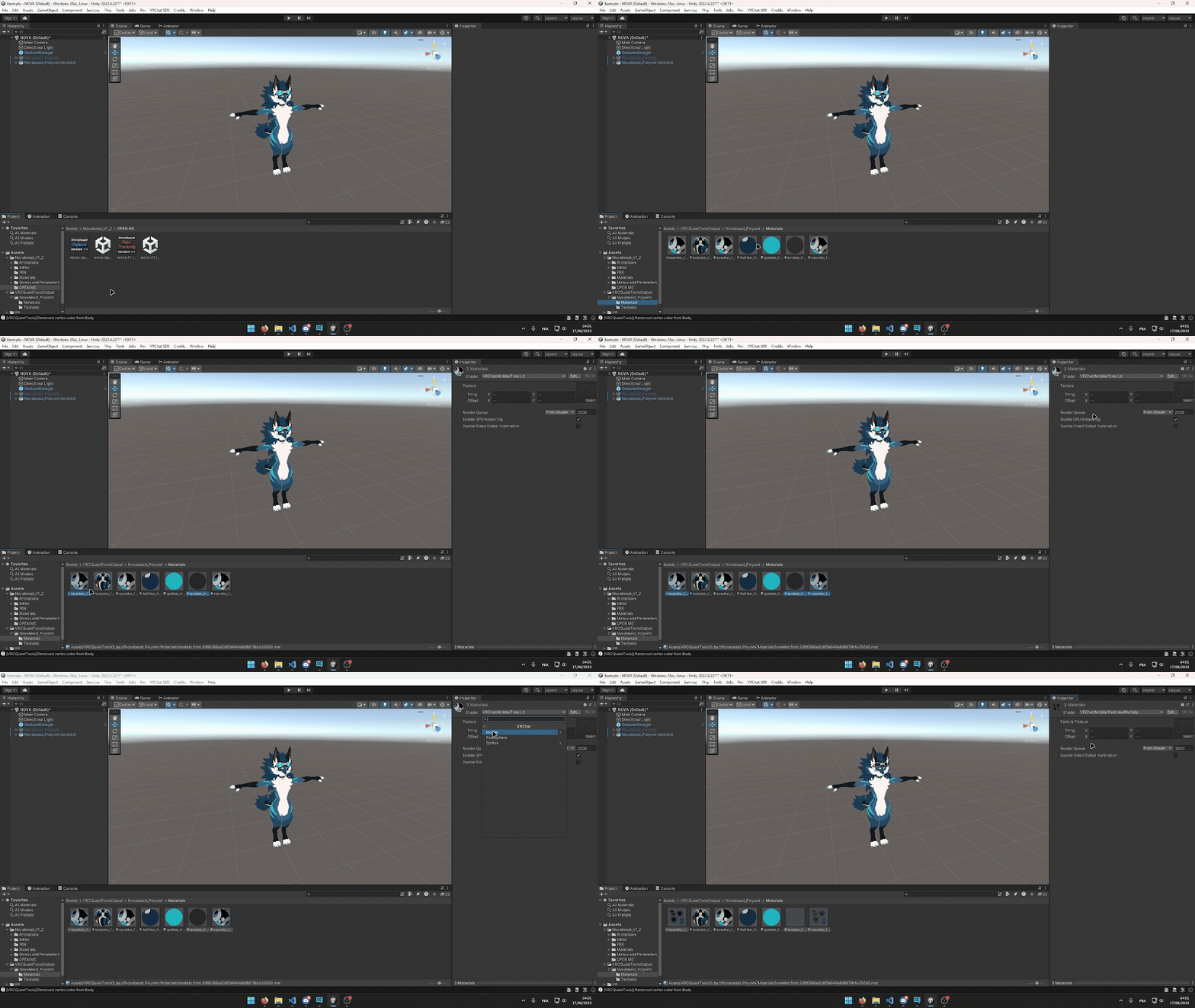
You are now ready to convert your own vrchat avatar! If you encounter any issues, make sure to follow the steps correctly and verify the installed dependencies.